Monitor Arm Weight Limits: Will Your Arm Hold That Ultrawide?
Here is a thing nobody tells you when you buy a monitor arm: the rated capacity is basically fiction. That arm on Amazon that says "supports up to 17 lbs"? It was tested with the arm fully retracted, pointing straight up, in a lab. Extend it horizontally to where you actually use it, and watch it sag under a 15-lb monitor. You are not crazy. The arm is just lying to you.
The gap between rated and real-world capacity is the single biggest reason monitor arms get returned. People unbox a $40 arm, clamp it on, extend it, and their $500 monitor slowly tilts toward the desk like a dying flower. This guide covers what ratings actually mean, how much your monitor really weighs, and what arm you actually need.
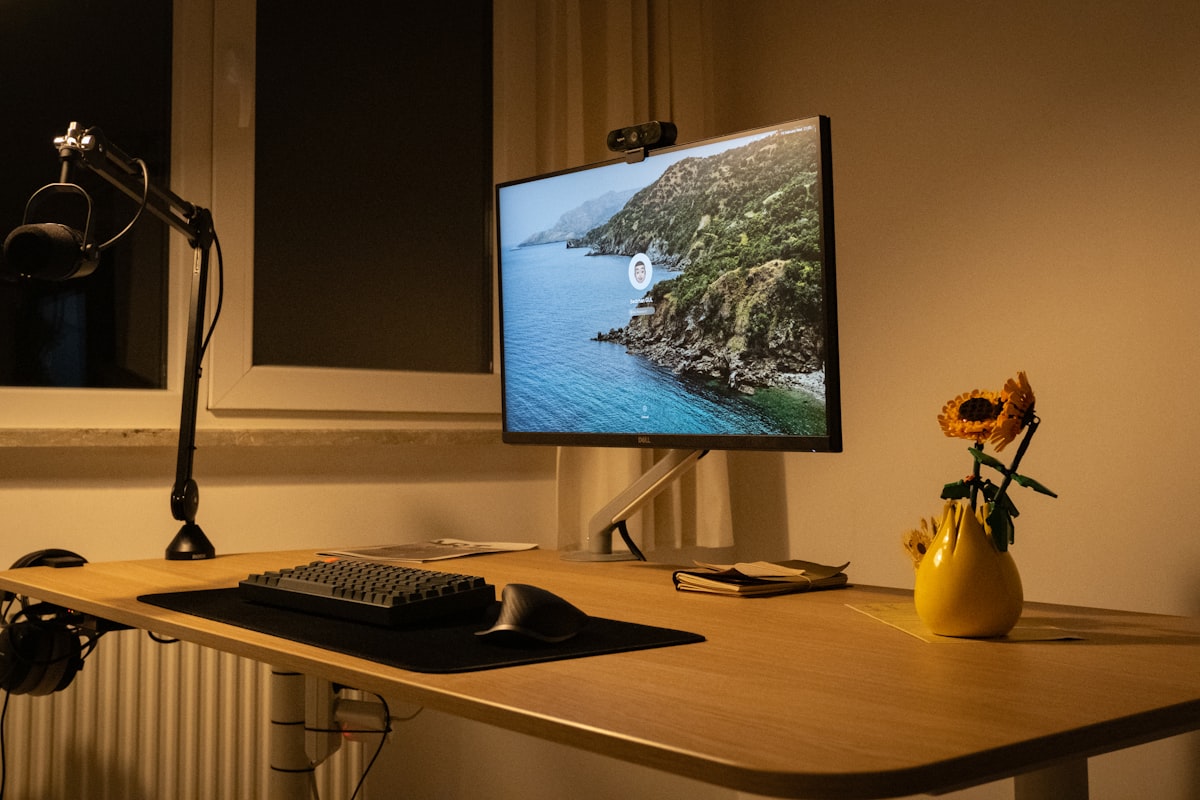
At full extension, leverage multiplies the effective load on the arm's gas spring far beyond what the rating suggests.
01. Why Rated Capacity Is a Lie
Monitor arm manufacturers test weight capacity with the arm in its most mechanically advantageous position , usually fully retracted with the joint stack vertical. The gas spring or mechanical spring only has to fight gravity straight down. There is almost no leverage.
The moment you extend the arm horizontally, everything changes. A 15-lb monitor at the end of a 20-inch arm generates roughly 300 inch-pounds of torque at the joint. That is why the arm sags. It is not that the spring failed , it was never designed to hold that weight at extension in the first place.
| Arm Price Tier | Typical Rated Capacity | Real-World Safe Limit |
|---|---|---|
| Budget ($25-50) | 13-17 lbs | 9-12 lbs |
| Mid-Range ($50-100) | 17-26 lbs | 13-20 lbs |
| Premium ($100-200) | 26-33 lbs | 20-26 lbs |
| Heavy-Duty ($200+) | 33-44 lbs | 26-35 lbs |
If you are wondering whether your setup passes, plug your measurements into the ergonomic calculator , it cross-references monitor size, arm rating, and desk depth.
02. How Much Does Your Monitor Actually Weigh?
Most people have no idea what their monitor weighs because the spec sheet lists "weight with stand" , which you are removing before mounting. The panel itself (without the stand) is usually 30-40% lighter. Here are real weights pulled from spec sheets across common sizes:
| Monitor Size | Panel Weight (No Stand) | Example Models |
|---|---|---|
| 24" 1080p | 7-10 lbs | Dell S2421H, HP X24ih |
| 27" 1440p | 10-15 lbs | LG 27GP850, Dell S2722QC |
| 32" 4K | 15-20 lbs | Dell G3223Q, LG 32UN650 |
| 34" Ultrawide | 15-22 lbs | LG 34GP83A, Alienware AW3423DWF |
| 38" Ultrawide | 18-25 lbs | LG 38WN95C, Dell U3824DW |
| 49" Super Ultrawide | 25-35 lbs | Samsung G9, LG 49GR85DC |
Check your monitor's spec sheet for "weight without stand." If only total weight is listed, subtract 4-6 lbs for typical stands, or 8-10 lbs for ultrawide metal stands.
VESA 100x100mm is the standard for most monitors 24-32 inches , check your pattern before buying an arm.
03. VESA Standards: Will It Even Fit?
Weight capacity means nothing if the bolt pattern does not match. VESA (Video Electronics Standards Association) defines the mounting hole spacing on the back of displays. Three patterns cover basically everything:
| VESA Pattern | Hole Spacing | Common On |
|---|---|---|
| 75 x 75mm | 75mm square | Small monitors (under 22"), older LCDs |
| 100 x 100mm | 100mm square | Most monitors 24-32", standard for nearly all modern arms |
| 200 x 100mm | 200mm wide x 100mm tall | Large ultrawides (34"+), some curved VA panels |
Nearly every monitor arm on the market supports 75x75 and 100x100 out of the box. The 200x100 pattern is where things get tricky , budget arms often skip it. If your 34-inch ultrawide uses 200x100 (check the manual or measure the mounting holes), make sure the arm explicitly lists VESA 200x100 in its compatibility.
04. C-Clamp vs Grommet: Weight Distribution Matters
A heavy arm plus a heavy monitor puts a lot of pressure on a small desk area. Most monitor arms ship with a C-clamp mount , it grips the back edge of the desk. For solid wood or butcher block desks, this is fine. For the hollow honeycomb-core desks from IKEA (Linnmon, Lagkapten), it is a disaster waiting to happen.
C-Clamp Mount
- Easy to install and reposition
- Works on desks 0.5-3.5 inches thick
- Small footprint on top of desk
C-Clamp Mount
- Concentrates all weight on a small clamp area
- Can crush hollow-core desktops
- Blocks access to desk edge cable channels
Grommet mounts pass through a pre-drilled desk hole and secure underneath, distributing weight across a wider area. Most premium arms include both options. For desks under 1 inch thick or with honeycomb cores, use a grommet mount with a reinforcement plate.
This also ties into overall desk stability. If your desk wobbles at standing height, a heavy monitor arm makes it worse , the mass at the top amplifies every vibration. Our standing desk wobble guide covers crossbar vs C-leg vs T-leg stability and how arm weight factors in.
05. Gas Spring vs Mechanical: Which Holds Weight Better?
Gas Spring Arms
- Smooth, one-touch height adjustment
- Counterbalance feels effortless
- Better at holding position mid-range
Gas Spring Arms
- Lose tension over time (2-3 years typical)
- More sensitive to being under-rated
- Harder to repair when they fail
Mechanical spring arms use a coil spring and friction knobs instead of a gas cylinder. They are less smooth to adjust but more forgiving when slightly overloaded , a mechanical spring can be cranked tighter to compensate for sag, while a gas spring just gives up. For monitors near the weight limit, a mechanical arm often holds position better at extension.
If you are shopping for a monitor arm and want to compare specific models, our best monitor arms guide has side-by-side weight ratings, VESA compatibility, and real-world testing across six popular arms.
03. CHECK YOUR SETUP
Enter your monitor weight, arm rating, and desk depth into the SmartDeskDojo Ergonomic Calculator. It flags setups where the arm is likely under-rated and recommends specific arms that will hold your display without sagging.
06. The Bottom Line
Buy an arm rated 30-50% above your monitor's actual weight (panel only, no stand). Check your VESA pattern , 100x100 covers most cases, but ultrawide owners need to verify 200x100 compatibility. Use a grommet mount if your desk is thin or hollow-core. And if you are anywhere near the weight limit, go mechanical spring over gas , you can always tighten a spring. You cannot refill a gas cylinder.
Still not sure? Measure your monitor's weight (spec sheet or a bathroom scale), check the VESA pattern, and look up your desk type. Then browse our monitor arm comparison for weight-rated picks. If you are running dual monitors, the dual monitor measurement guide has arm placement and viewing angle data. Heavy ultrawide? Make sure your desk depth can handle the arm's reach plus the monitor's curvature.
Shop Heavy-Duty Monitor Arms on Amazon